Good controls win fights in 1v1.lol. If your fingers know what to do without thinking, you can aim, build, and switch weapons in a fraction of a second. If you have to search for the right key or button, you will lose. In this guide, we explain every 1v1.lol control on PC and mobile, how to change them, and how to practice them until they become second nature.
PC Controls: Keyboard and Mouse
On PC, 1v1.lol uses the keyboard for movement and building, and the mouse for aiming and shooting. Here are the default controls:
- W, A, S, D: Move forward, left, backward, and right.
- Mouse: Aim your weapon and look around.
- Left-click: Shoot your weapon or use your Axe.
- Right-click: Aim down sights or edit a structure.
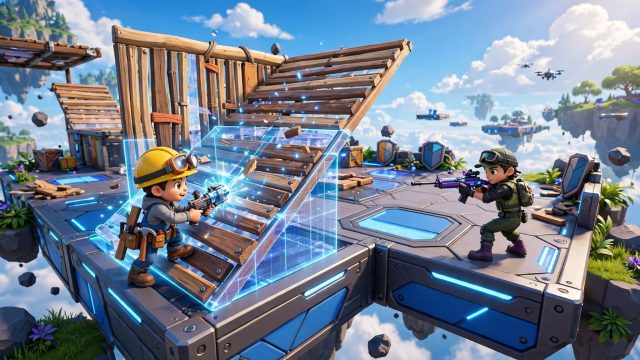
- Q: Build a wall.
- F: Build a floor.
- R: Build a ramp.
- 1 to 5: Switch between weapons and the Axe.
- R (hold): Reload your weapon. On some layouts, reload is a separate key, so check your settings.
- Spacebar: Jump.
- Shift: Sprint or crouch, depending on your settings.
These are the default keys, but you can change every one of them in the settings. Many pro players change their build keys to buttons closer to their movement keys, such as using the mouse side buttons for building. The best setup is the one your fingers can reach without moving your hand away from the movement keys.
Mobile Controls: Touch Screen
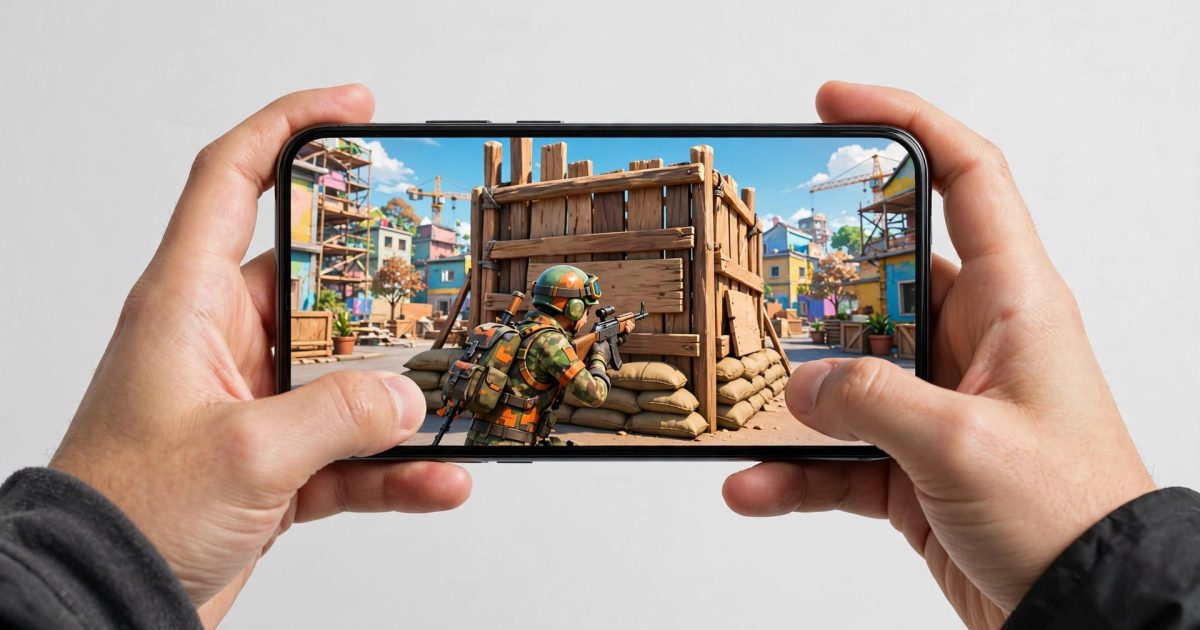
On Android and iOS, 1v1.lol uses touch controls. The left side of the screen has a virtual joystick for moving. Drag it in any direction to walk or run. The right side of the screen has buttons for shooting, jumping, building, and switching weapons. Tap the fire button to shoot, and drag on the right side of the screen to aim.
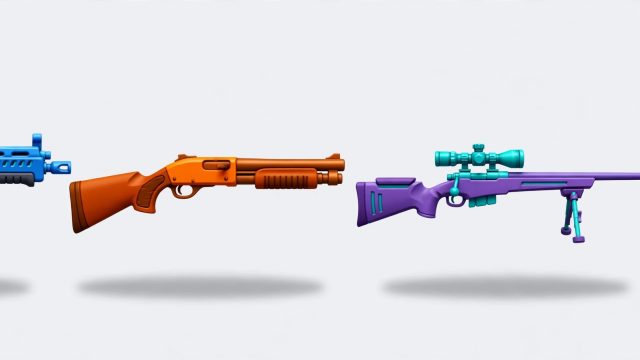
The build buttons are the most important part of the mobile layout. There is a button for walls, a button for ramps, and a button for floors. Tap one to select the structure, then tap the screen to place it. The weapon switch buttons let you change between the Assault Rifle, Shotgun, Sniper Rifle, and Axe. The jump button is usually near the fire button, so you can jump and shoot at the same time.
How to Customize Your Controls
Both PC and mobile let you change your controls, and you should. On PC, open Settings, then Controls, and click any action to assign a new key. Pick keys that feel natural and that you can press fast. Keep your build keys near WASD so your left hand never has to stretch. On mobile, open Settings, then Controls, and drag the buttons to new positions. Make the buttons bigger if you keep missing them, and move the build buttons closer to your right thumb.
After you change your controls, do not jump straight into a ranked match. Play a few rounds in JustBuild and Aim Trainer first. Your hands need time to learn the new layout. If the new setup feels wrong after a day or two, change it again. There is no perfect control setup. There is only the setup that works best for you.
Mouse Sensitivity and Aim Settings
On PC, mouse sensitivity decides how fast your aim moves. High sensitivity lets you turn quickly, but it is harder to aim precisely. Low sensitivity gives you better aim, but you turn slowly. Most good players use a medium sensitivity and a large mouse pad. Start with the default sensitivity, then lower it a little if your aim jumps past the target, or raise it a little if you cannot turn fast enough to follow an enemy.
On mobile, the look sensitivity setting does the same job. If the screen moves too fast when you drag, lower the sensitivity. If it moves too slowly, raise it. Also turn on the aim assist option if the game offers it. Aim assist gently helps your crosshair stay on the enemy, which makes a real difference on touch screens.
Tips to Master the Controls Faster
Here are five tips that will help you learn the controls faster. First, practice in JustBuild mode for ten minutes every day. Build boxes and ramps until your fingers move on their own. Second, use the Aim Trainer to practice shooting while moving. Third, play with the same control layout for at least a week before you change it again. Fourth, watch how good players move and copy their keybinds if they feel comfortable. Fifth, keep your hands relaxed. Tense fingers are slow fingers. Shake your hands out between matches and take a short break every hour.
Frequently Asked Questions
What are the default PC controls for 1v1.lol?
On PC, you move with WASD, aim with the mouse, shoot with left-click, build walls with Q, floors with F, and ramps with R. You switch weapons with the number keys 1 to 5, and you jump with the spacebar.
Can I change the controls in 1v1.lol?
Yes, you can change every control in the settings on both PC and mobile. On mobile, you can also move and resize the touch buttons to fit your hands.
Are touch controls good enough to win in 1v1.lol?
Yes, many skilled mobile players win matches with touch controls. They are slower than a mouse and keyboard, but with practice and a good custom layout, you can play at a high level.
What sensitivity should I use in 1v1.lol?
Start with the default sensitivity and adjust it slowly. Lower sensitivity gives you better aim, while higher sensitivity lets you turn faster. Pick the setting where your aim feels smooth and controlled.